
Issue and manage tax invoices
Issuing tax invoices
Before issuing the invoice
To issue a tax invoice, you need to register a digital certificate (joint certificate) during the initial setup.
Navigate to the business settings page by clicking on 'Settings' in the left navigation bar. On the business settings page, go to the 'Service integrations' tab and click 'Connect' in the Tax invoices option to enable the tax invoice service
A Windows PC is required for the initial joint certificate registration (after the first registration, tax invoices can easily be issued from mobile devices or Mac PCs)
Registration will be required again if/when your joint certificate expires
Issuing the invoice
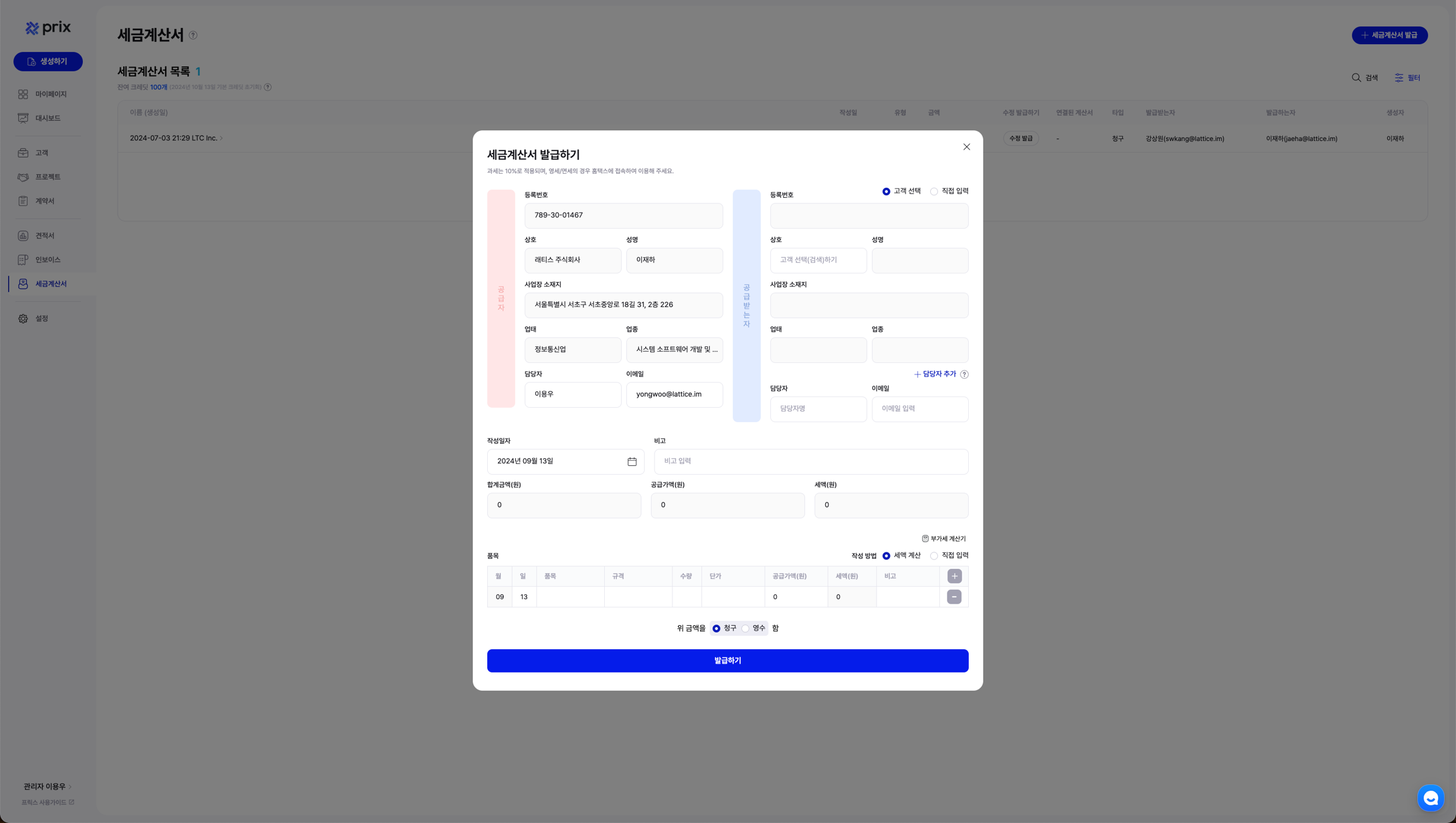
Click on 'Issue invoice' in the top right corner of the listing page to open a modal window where you can issue an invoice.
You can issue tax invoices anywhere on any page within Prix (invoice list page, billing schedule, customer details page, etc.)
On billing days, issue invoices and tax invoices directly in the schedule
Import line items from sales documents and automatically populate tax invoices
Issue tax invoices to specific customers in the customer details page
To issue a tax invoice, you need to enter the following information:
Supplier information: The company information registered in the 'Business' information is imported by default. You can edit the supplier's contact information
Recipient information: You can import previously registered customers by searching for them or create a new customer profile
Default values: You can enter the date of creation, amount (total amount, VAT excluded amount, VAT amount), and line items.
If you input the tax invoice manager information under customer details, it will be set as default
You can configure the tax invoice manager details in the business settings
Precautions
Be mindful of the following issues when issuing tax invoices:
The total supply value must equal the sum of the supply values of individual items
The supply value is a required input
When issuing a revised tax invoice, you must include the original invoice's IRS approval number and the reason for the correction (if issued through Prix, the NTS approval number will be automatically provided).
Each tax invoice issuance requires 1 credit. Please refer to the guide below for more details on how to purchase credits.
Managing tax invoices
Click on 'Tax invoice' on the left navigation bar to access list of tax invoices.
Use the 'Filter' button at the top right of the list to search for tax invoices based on specific conditions (e.g., customer name, date range)
At the top left of the tax invoice list, you can see the number of available issuances, issued invoices, and the reset date (along with remaining credits).
For each issued tax invoice, you can view all linked tax invoices.
If a tax invoice has already been issued, you can issue a modified tax invoice using the 'Modify issuance' function.
If a tax invoice was issued through Prix, it will automatically be sent to the National Tax Service on the next business day. (You can also send it immediately by clicking on 'Send to NTS' in the linked page.)
Last updated