
Create and view sales documents
You can create and manage sales documents in Prix.
Creating sales documents


Prix supports two types of sales documents: quotes and invoices.
By clicking on 'Create' at the top right corner of each sales document page, you can navigate to the sales document creation page.
Create linked sales documents in customer or project details page (refer to the Manage Customers or Manage Projects guides)
Customer information is required when creating a sales document (link existing customers or manually input customer details)
Retrieve previously created sales document details (click on 'Import an existing sales document' at the top right corner of the creation page)
You can input the following values when creating a sales document:
A title and at least one line time will be required
Set VAT and discount details
Discount details can be applied to the entire sales document or to individual line items
Automatically calculate VAT via the 'VAT calculator' located to the right of the line item section.
Select dollars or euros as the currency unit for individual items or the entire sales document (KRW not supported)
Check rounding options for each item and review the total amount
The company signature that you set in Business information is selected by default
Enter bank account number and notes
[Pro plan] If you have registered more than one business, you can choose which business you want to create a sales document for
For quotes, you can select the layout
When creating a sales document, you can preview the document by clicking on 'Preview' at the top. Once you've entered all the information, click on 'Create' in the top right corner to generate the sales document.
Create invoices in bulk

You can create invoices in bulk by linking them to a project (this feature is currently only available for invoices).
You can upload your project/events by clicking on 'Upload projects/events in excel format' under 'Options' in the top right corner of the project list page.
To create multiple invoices at once, update the sample Excel file provided with your desired inputs without configuring the format.
Sending invoices in bulk (Pro plan feature)

You can use the bulk send invoices feature if you are subscribed to the Pro plan. You can send multiple invoices at once by checking the checkbox on the left side of the invoice list.
However, only invoices with registered recipients can be sent in bulk.
Create invoices from quote information
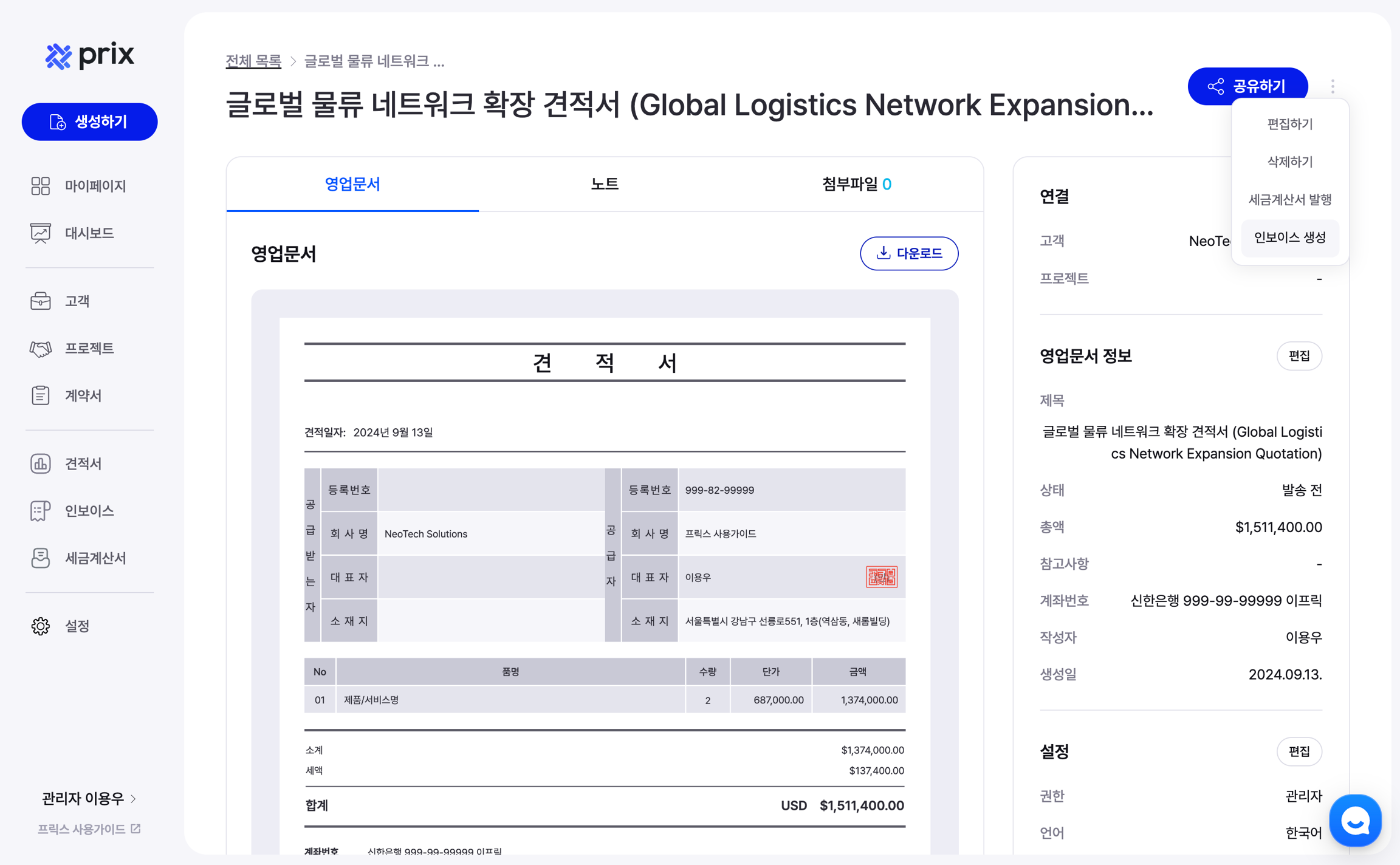
You can create an invoice from the options clickdown next to 'Share' in the quote details page.
View and manage sales documents

You can sort and view business documents in using various filter options to meet your needs.

You can perform various actions by clicking the checkbox on the left of the quotes list.
The 'Copy' option allows you to duplicate an existing business document, including the same settings, detailed configurations, signatures, and linked customer/project information.
(However, linked events will not be duplicated)
Last updated