
Share and utilize sales documents
You can share and utilize sales documents created in Prix.
Manage sales documents

By clicking on 'Edit' within the sales document detial page, you can manage/update sales documents.
Link the sales document to a project, customer, or event
Edit the details of the sales document
Configure various permission options and set email recipients
Delete or modify the document's signature
Check sharing history via email or KakaoTalk in the ‘History’ tab
(To track viewing history, the recipient must receive the document through a hyperlink shared via the 'Share' feature, not by downloading a file)
The sales document details page contains various tabs for additional information about the document.
View and download sales documents you created in the 'Sales document' tab
View or add notes in the the 'Notes' tab
Manage attachments in the 'Attachments' tab
You can issue tax invoices based on the items in the sales document (for more details on issuing tax invoices, refer to the tax invoice management guide below).
Share sales documents

To share a sales document, click on ‘Share’ at the top right of the document detail page.
By clicking on ‘Share via email’ button and entering an email address, an email containing a link to view the document will be sent
For English sales documents, the email will automatically be sent in English
You can send the document to multiple recipients and cc relevant people. You can also add a message in the email body
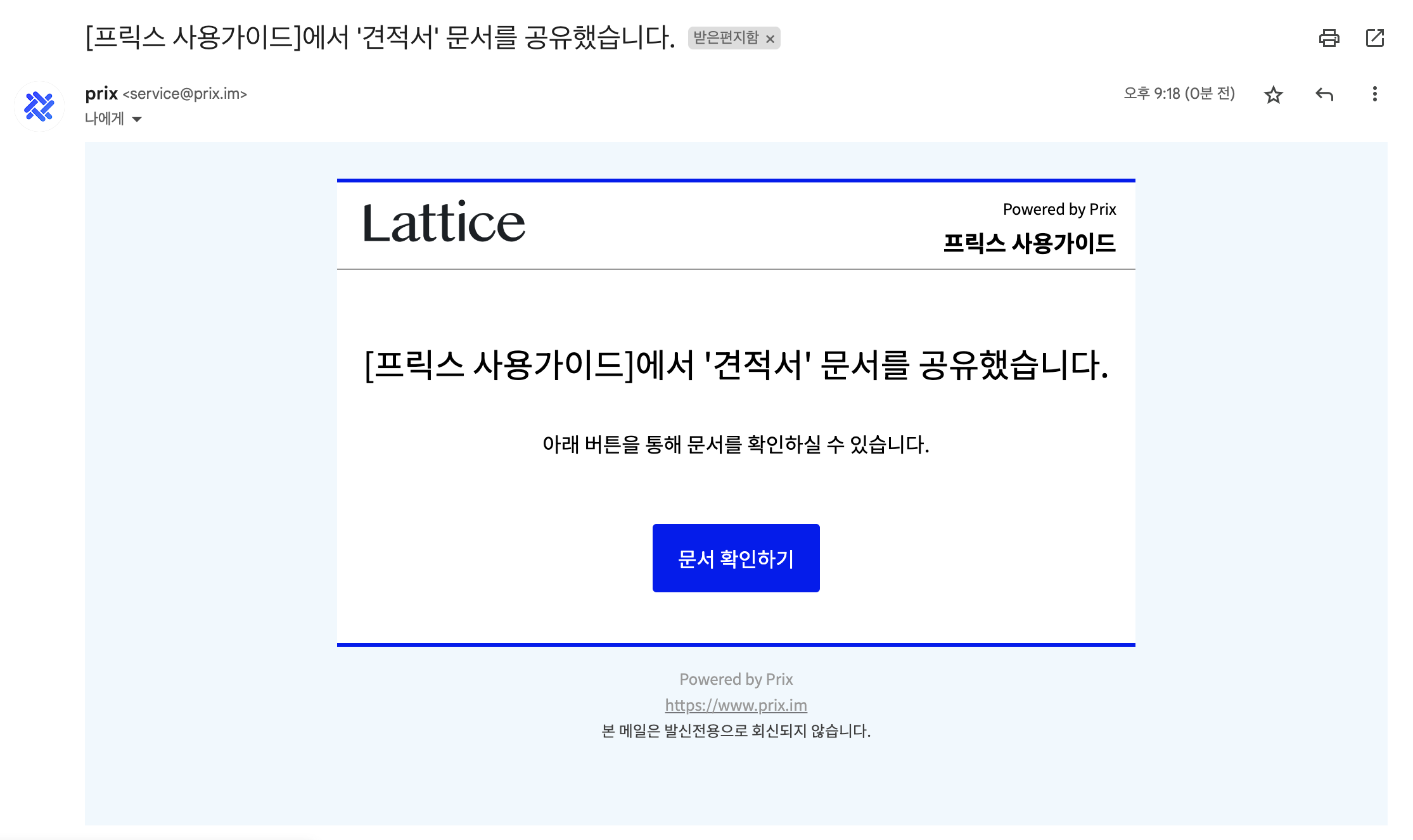
By clicking on ‘Share via KakaoTalk’ and entering a phone number, a message containing a link to view the document will be sent via KakaoTalk
Clicking on ‘Share via link’ will copy a link to view the document to the clipboard
Additional sharing options can be set:
Expiration date: Once the expiration date is set, the recipient will not be able to access the document after that date
Password protection: The recipient will need to enter a password to view the document
Download restrictions: If downloads are disabled, the recipient will not be able to download the document
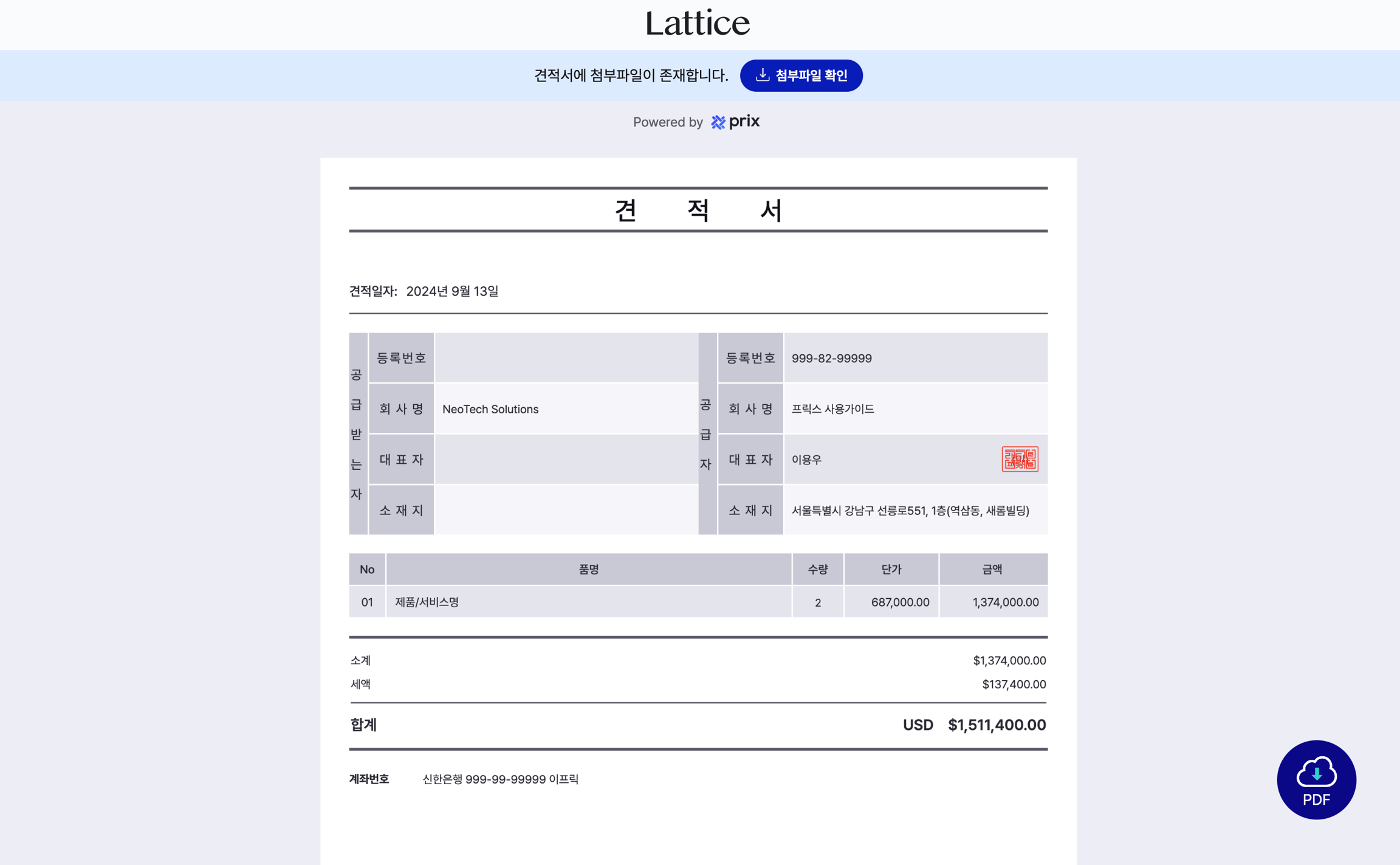
If attachments are linked to the document, the recipient can view and download them via the shared document.
Share multiple sales documents at once
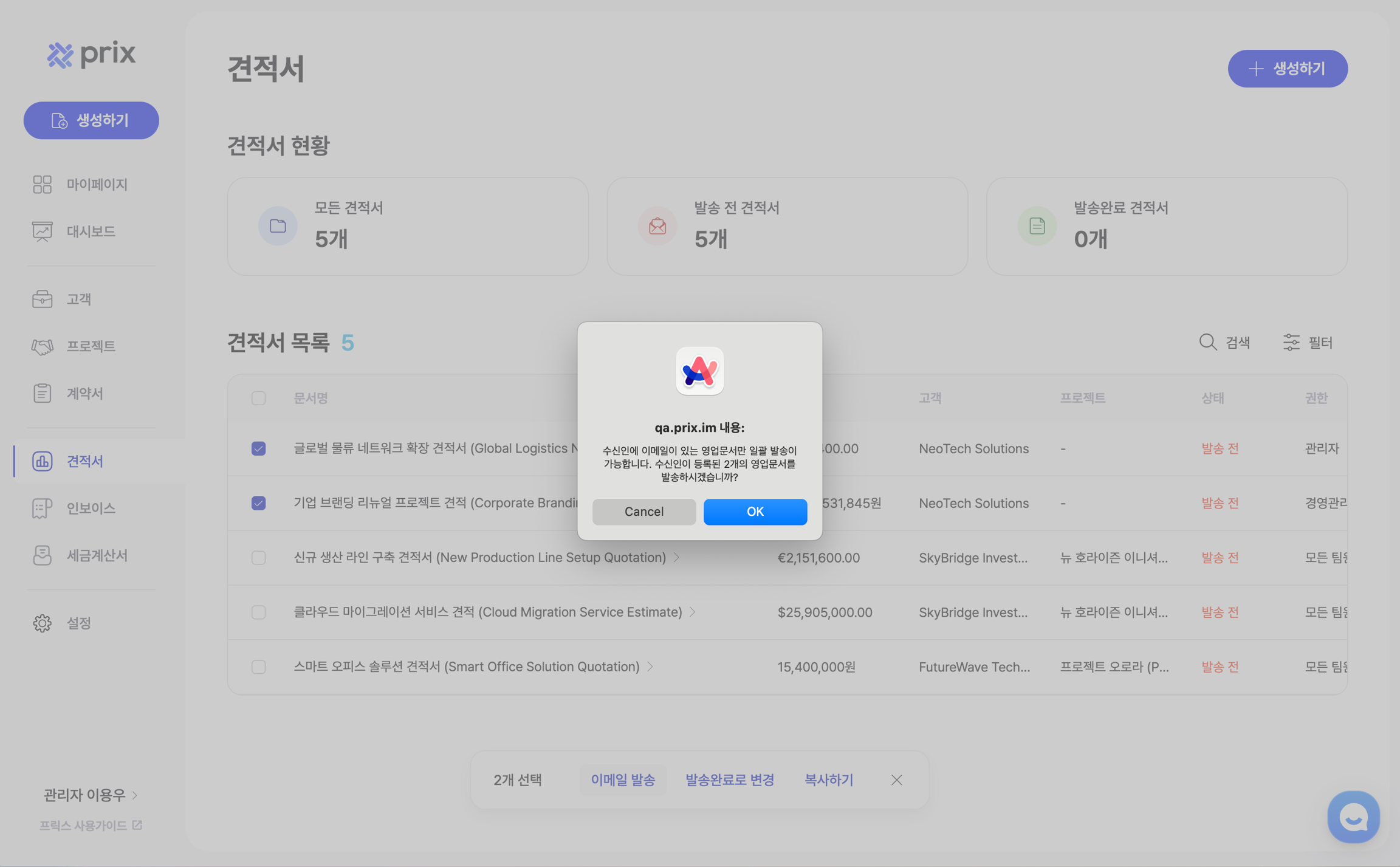
You can share multiple sales documents (invoices, quotes) in bulk
Use the checkboxes on the left side of the sales document list to select documents for bulk sharing
Send documents in bulk from the customer or project detail pages
(Note: To send documents in bulk, each document must have a recipient email address)
Last updated