
Request and manage eSignatures
Request and manage eSignatures in Prix.
Request an eSignature

For contracts created on Prix, you can request eSignatures in the following locations:
Contract list page (in cases where internal review or legal review isn't used)
Contract details page (in the top right corner OR 'eSignatures' tab)
You can only request an eSignature for contracts that have not been signed yet

Clicking on ‘Request eSignature’ will take you to the eSignature request page.
Requesting an eSignature is divided into two steps: [1] Entering signature information, [2] Specifying a signature location
In the ‘Signature information’ section, you can set the basic details such as requester's name, signature deadline, as well as participants and stakeholders to cc.
The signing deadline is automatically set to +15 days from the day the signature request is sent
Include up to 6 participants (to designate more signing participants, please refer to the workflow guide below)
You can proceed with the eSignature without entering a seal/signature even if there are participants involved
A company signature/seal is required for eSignatures with no participants
Contracts in which a participant has not inputted a signature/seal in the final stage will be marked in the contract list
A signature request and confirmation email will be sent to the email or phone number you entered
Include people to cc (optional)
The eSignature requester is included in people to cc by default
The cc-ed party will be notified via email when the signature request has started and been completed
Specify the signature location
In the 'Signature location' step, you need to specify where the signing participant should sign.
The 'Signature location' step is divided into three main areas:
Left panel: Participant inputs
Middle panel: Contract
Right panel: Detailed options for inputs

A contract can be executed even without including a seal/signature (If a seal/signature is not included, the list of participants can be viewed when generating the eSignature).

‘Default signature’ allows you to include your company's default eSignature when requesting one.
When using ‘Default signature’, the requestor of the eSignature is included as a participant by default
Input values added from the left panel can be adjusted and configured through the right panel.
Add text: participants can enter text and select alignment options (left, centre, right aligned)
Add checkbox: allow signers to check boxes. In the right panel, you can select whether the checkbox is required
Add signature/seal: allow signers to enter a signature or stamp. In the right panel, you can set the option to allow the signature/stamp to be resizable (if enabled, the signer can adjust the signature/stamp's size)
Add signed date: specify when the contract was signed (In the right panel, you can choose the separation/format of the signature date)
Add attachment: allow the signer to add attachments
Checking the status of an eSignature

Once you've completed your eSignature request, check its progress on the ‘eContract’ tab of the contract details page.
Resubmit requests for eSignatures
When resumitting a request, you can change all participant information (i.e., sharing method, language, message) except for the participant's name
Preview contracts or documents for which you have requested an eSignature for (available until contract is executed)
Download the original document
Even if you cancel an eSignature, you can edit it and recreate the request
Participate in an eSignature
When an eSignature is requested, a link to partake the eSignature is sent to the email or phone number set by the requester. Signing participants will be directed to a page to submit an eSignature.
Email or phone number is required to submit eSignature
If you set additional authentication requirements, participants will be required to take additional verification steps
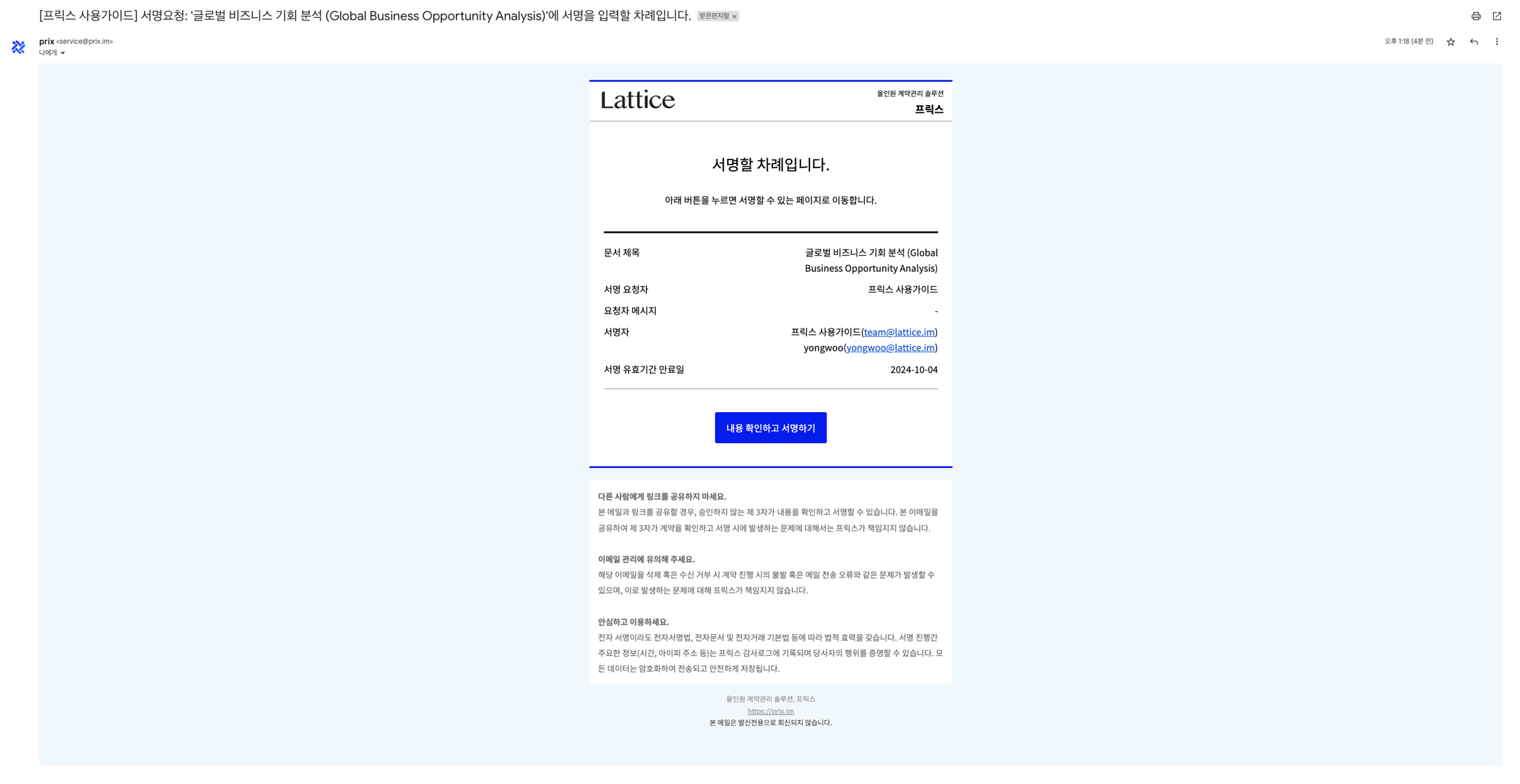
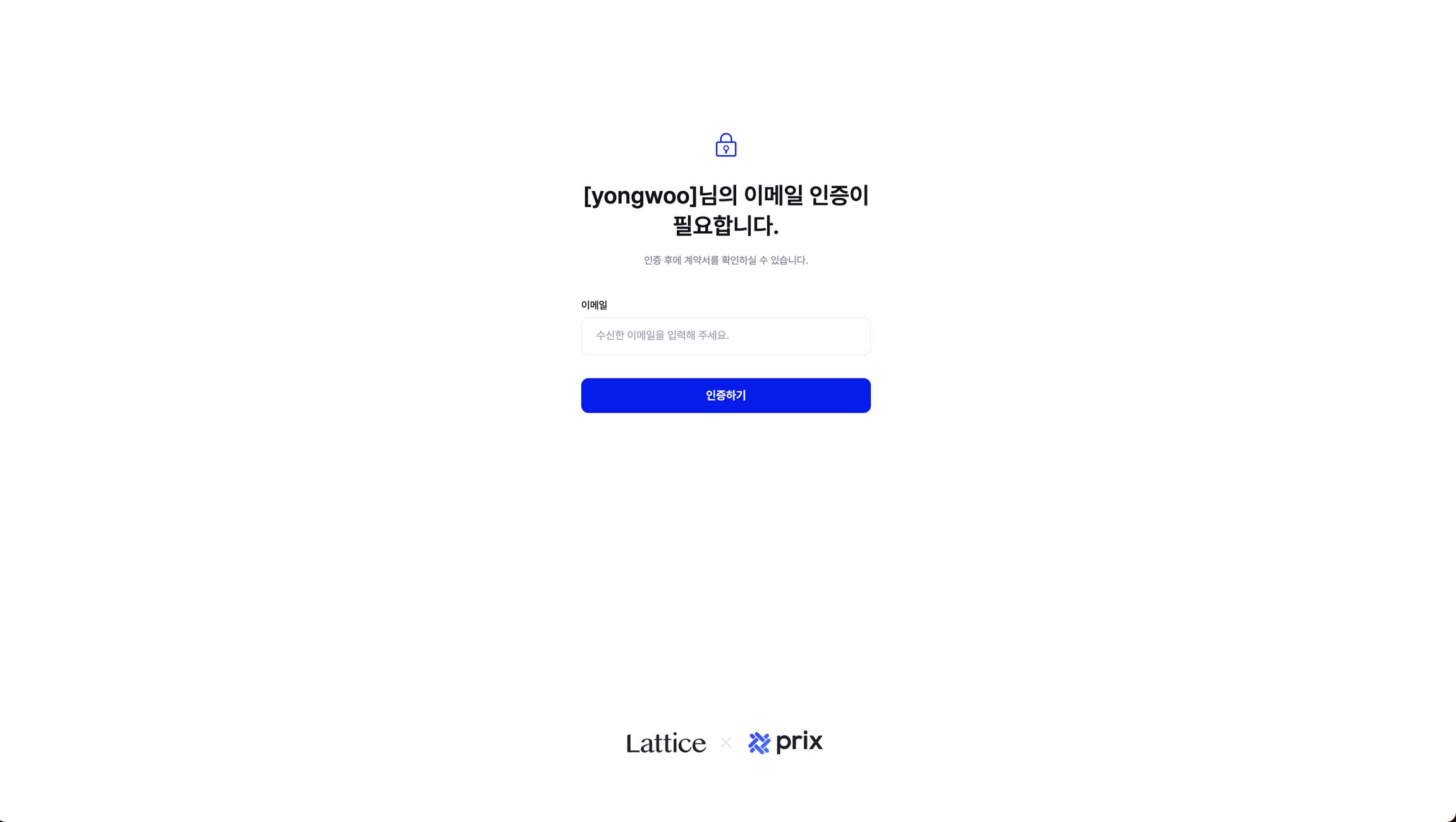
Once authenticated, participants can view the contract and the requested inputs.
Once all participants have signed, the requester will receive a completed contract via email along with an audit trail certificate to verify the contract's legal effect
Last updated