
Manage contract workflows/templates and sign contracts in bulk
You can automate recurring eSignatures by creating workflows/templates, enabling bulk signing.
Access and manage contract workflows/templates


Clicking on 'Utilize templates' in the create contract modal window, you can access the templates list page. Click on 'Create' in the top right corner of the workflow list page to create a template.
The workflow/template you create will be the one you will use to enable 'Bulk signing', and you can edit the workflow by clicking on 'Edit' button in each template row
Search by title in the top right corner of the list, or use the filter function to your need

The workflow/template creation process consists of 2 steps.
'Workflow/Template information'
Once you've entered the workflow/template name, uploaded contract documents, and assigned signatory roles, you can proceed to the signature step by clicking on 'Next' in the top right corner
You can either add a PDF document directly or create one using the editor provided by Prix
To use bulk signing, you will be restricted to set only 1 participant (e.g., for a labor contract, you can set the participant role to 'worker' and include the company signature as the default signature)
In the Advanced settings section, you can specify detailed settings for the workflow
Set account managers, tags, permissions, and people to cc
View/edit permissions defaults to “Admin + the team you're on”
Permissions can be modified when creating/editing a workflow or in the 'Settings' page
'Signature location'
This step is similar to the signature location step in the Request eSignature process
When creating a contract, you can set additional inputs that you would like to have pre-filled for each individual participant
The available additional inputs are text and checkboxes
Values that should be included by default can be added in the 'Set default input' section, while values and signatures to be entered by signing participants can be added and set in the 'Select participant input' section
Use contract workflows/templates

From the list of workflows/templates, click the name of the workflow/template you want to access the details modal.
Create contracts and request eSignatures seamlessly by simply inputting a contract title and relevant participant information.
For workflows with additional inputs, details of the additional inputs will also be required
The 'Preview' option at the bottom of the creation form allows you to see which documents and inputs will be requested.
The 'Preview' button is located at the bottom left of the modal window
[Pro plan] Sign in bulk
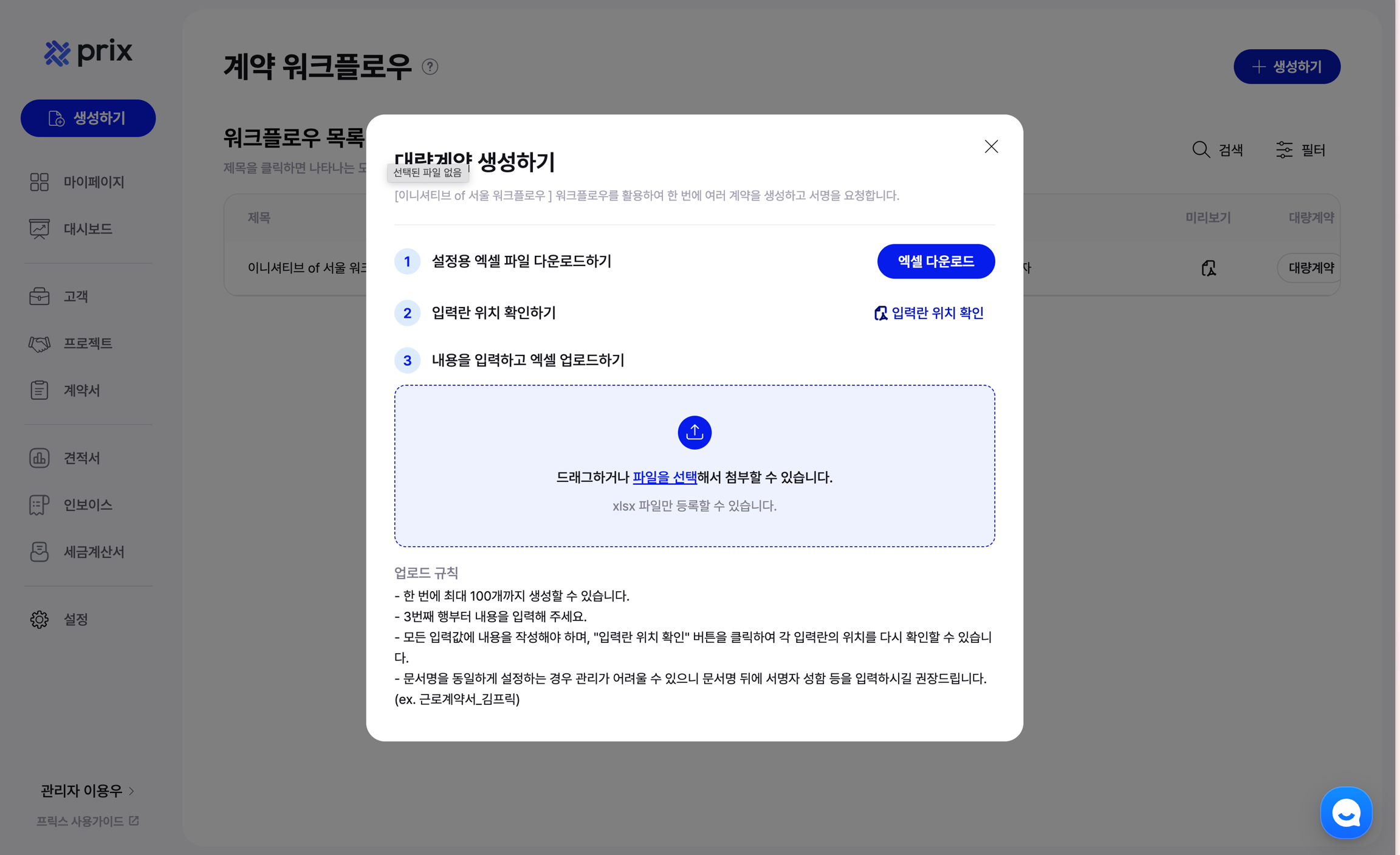
Click on 'Request bulk signing' on the right side of the workflow list to access the detailed modal.
Click 'Download excel' in the modal to download the excel file.
Enter the values that should be different for each signature (the 'Additional inputs' you set when creating the template) via the excel.
Check the position of the fields by clicking on 'Check location of input values'
Please check the instructions at the bottom of the modal
After uploading the file and clicking on 'Next', you will see a list of contracts that will be sent.

The currently logged in user will be automatically set as the signature requester. Company signatures included by default are considered to be signed by the requester
Press 'Request signature' to submit the request for bulk signing
Last updated