
Create and manage contracts
Create new contracts in prix, or upload and manage existing contracts.
Create contracts


Create and manage contracts that were previously managed separately in one place.
Add new contracts or upload existing contracts that have already been executed
Upload or create a contract by clicking on 'Create' in the left navigation bar, or by clicking on 'Create' in the top right corner of the contract list page
Alternatively, create an associated contract directly from a customer or project detail page, as described in the 'Manage customers' and 'Manage projects' guides
Upload a contract by clicking on 'Add a signed contract' in the 'Create contract' modal window or by dragging and dropping a contract
Only PDF, DOC, and DOCX file formats are currently supported
For DOCX file format, you can also register the contract by clicking 'Use editor' - 'File' tab on the top left - 'Open document' within the 'Create contract' modal window.
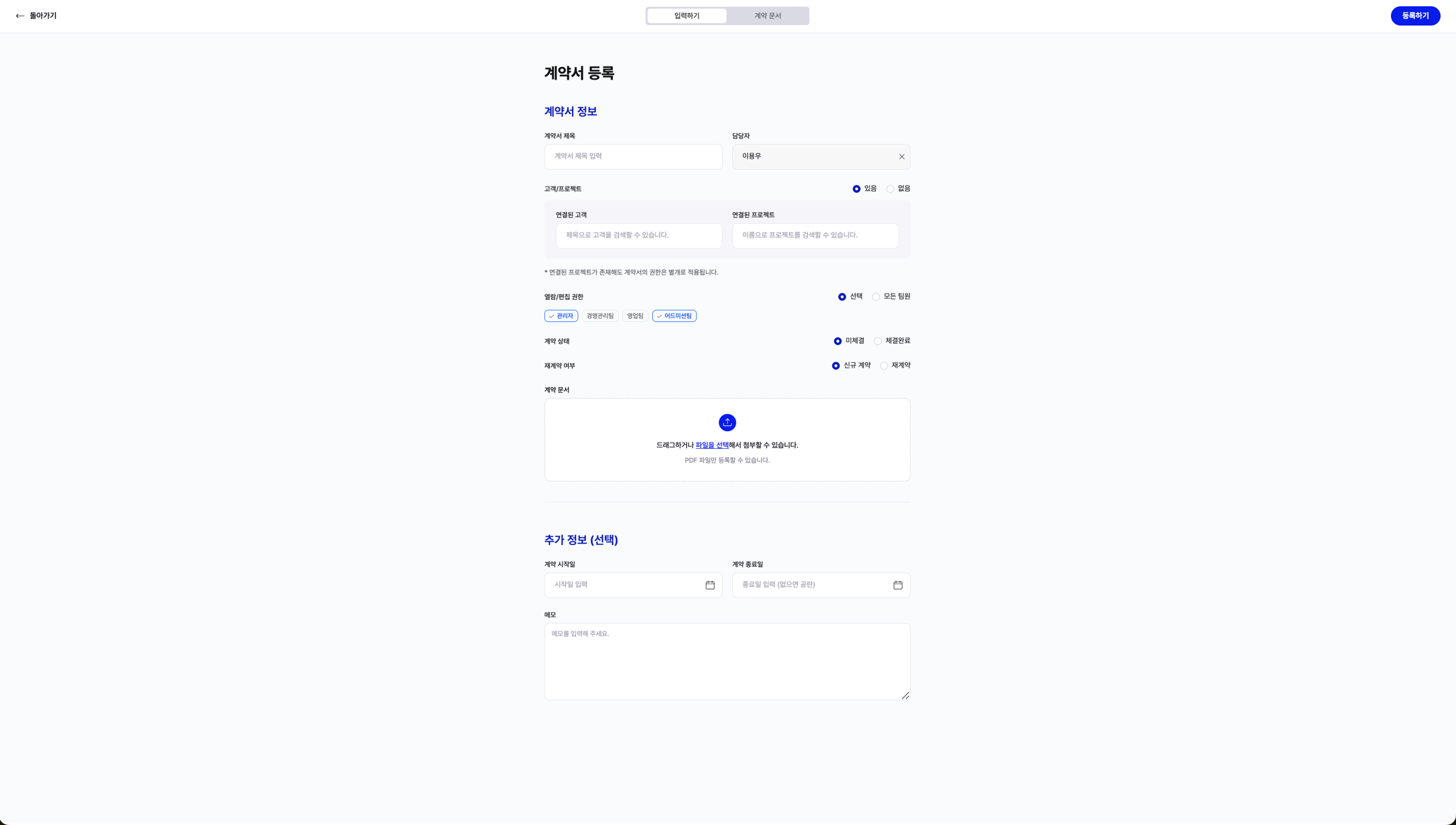
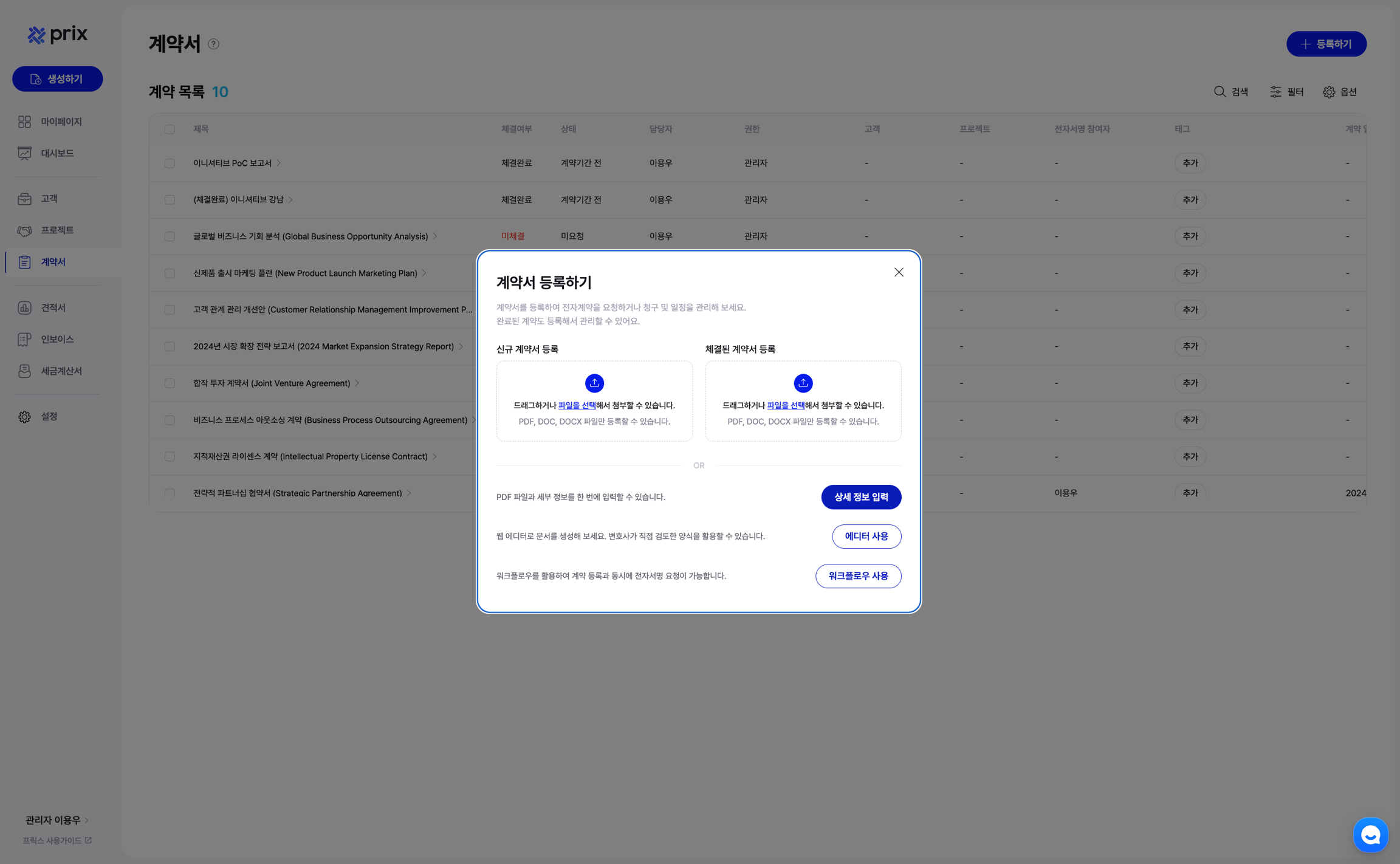
Register a contract and relevant details by clicking 'Enter details' in the create contract modal window.
The contract title and contract file are mandatory
In addition, you can enter account manager, associated customer/project, view/edit permissions, contract status, renewal status, contract duration, notes, and more
When you create a contract from a customer or project detail page, you can link the contract to the respective customer and project
Add or update details after creating the contract
Create new contract documents (templates)
Create contract documents directly in the editor within Prix and use them as templates.


Click on 'Use editor' button at the bottom of the Create contract modal to access the 'Create contract' page where you can create your own contract and utilize templates.
Polaris editor, which you can use just like you would a word document, is available
Import your existing word file by clicking on 'File' in the top left corner and then clicking on 'Open document'
Click 'File' on the top left, then click the 'Download' button to download the document you are working on as a docx or pdf file
On the contract creation page, you can utilize a variety of pre-approved templates reviewed by lawyers.
Access pre-approvded templates in the 'Prix templates' list on the right-hand side of the page, and clicking on one of them
Register and manage your own templates.
The 'Add teamplate' button on the right side of the 'Contract document forms' section in the top right corner will allow you to add/create your own templates
On the Create template page, enter the contents of the template and a name for the template, then click the 'Create' button in the top right corner to create a template
Clicking on 'Enter details' to the left of the 'Create' button will take you to the contract information page, where you can enter the contract details
Manage contracts in the contract list

Statistics and information about your contracts can be found in the Contracts tab of the 'Dashboard' page.
Refer to the Dashboard guide for more information
In the top right corner of the contracts list, there are various contract viewing options and filters.
Search for contracts by contract title, name (customer/project/contact person), and signature participant (name/email/phone)
Set filter criteria by contact person, tags, contract type, signed or not, legal review status, and more
Download the list of contracts as an Excel file by clicking on 'Download as excel file' in the options dropdown
Perform different actions in bulk by clicking on the checkboxes to the left of the contract list.
Change the permissions and tags of multiple contracts at once (note that this does not work with contracts that linked to projects)
Delete multiple contracts at once
Download multiple contracts at once
Manage contract details
After registering a contract, or creating a contract, access the contract details page by clicking on the contract in the contract list (on the Contract list page or the Contracts tab within Projects or Customers pages).

Download and edit contracts
In the 'Contracts' tab, view the registered contract and download the document by clicking on 'Download'.
Contracts created with the Prix editor can be downloaded as docx files
Contracts created through the editor can be saved while editing.
For contracts that have not been executed yet, you can change the registered document by clicking on 'Update contract'
Contracts created with the editor can be changed again by clicking the 'Edit document' button and then the 'Use editor' button
Other contract management options (request eSignatures, create notes, link attachments, etc.)
The 'eSignatures' tab allows you to request an eSignature or check the status of the request
The 'Notes' tab allows you to view or add notes related to the contract
The 'Attachments' tab allows you to manage attachments related to the contract. You can link attachments when using internal approvals or legal review
Guide to Using internal review (Pro plan)
Guide to Using legal review (Enterprise plan)
In the box on the right side of the page, there is a 'Contract Information' tab and a 'History' tab.
The 'History' tab allows you to view all history related to the contract in one place
The 'Contract information' tab allows you to edit the contract details, including connection and other settings
Link customers and projects to contracts
Connect contracts with other contracts, and check the linked contracts on each detail page (You can link and disconnect only those contracts for which you have permission to view)
Last updated