
Utilize legal review (Enterprise plan)
Use the legal review feature within Prix.
Advanced feature only available in our [Enterprise] plan.
Set up the legal review feature
To use the legal review feature, turn on the 'Legal team settings' option.
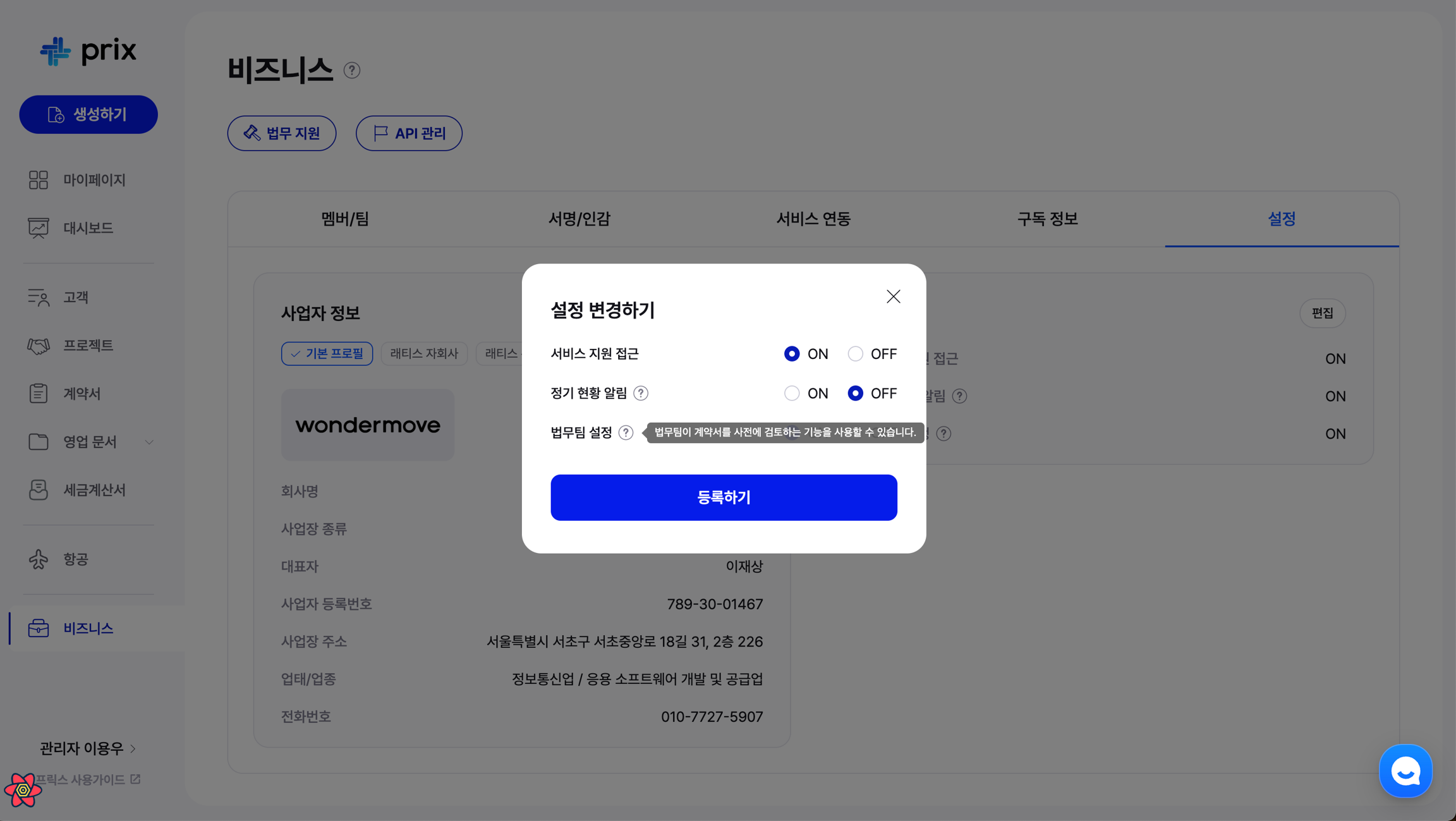
Click on 'Settings' in the left navigation bar and go to the Settings tab at the right end.
In the Settings section, click on 'Edit', set the 'Legal team settings' to ON. Then, click on 'Update settings' button to enable the legal review feature (Only users in the team with the 'Service integrations and settings' permission can change this setting).
Manage a team (Legal team)

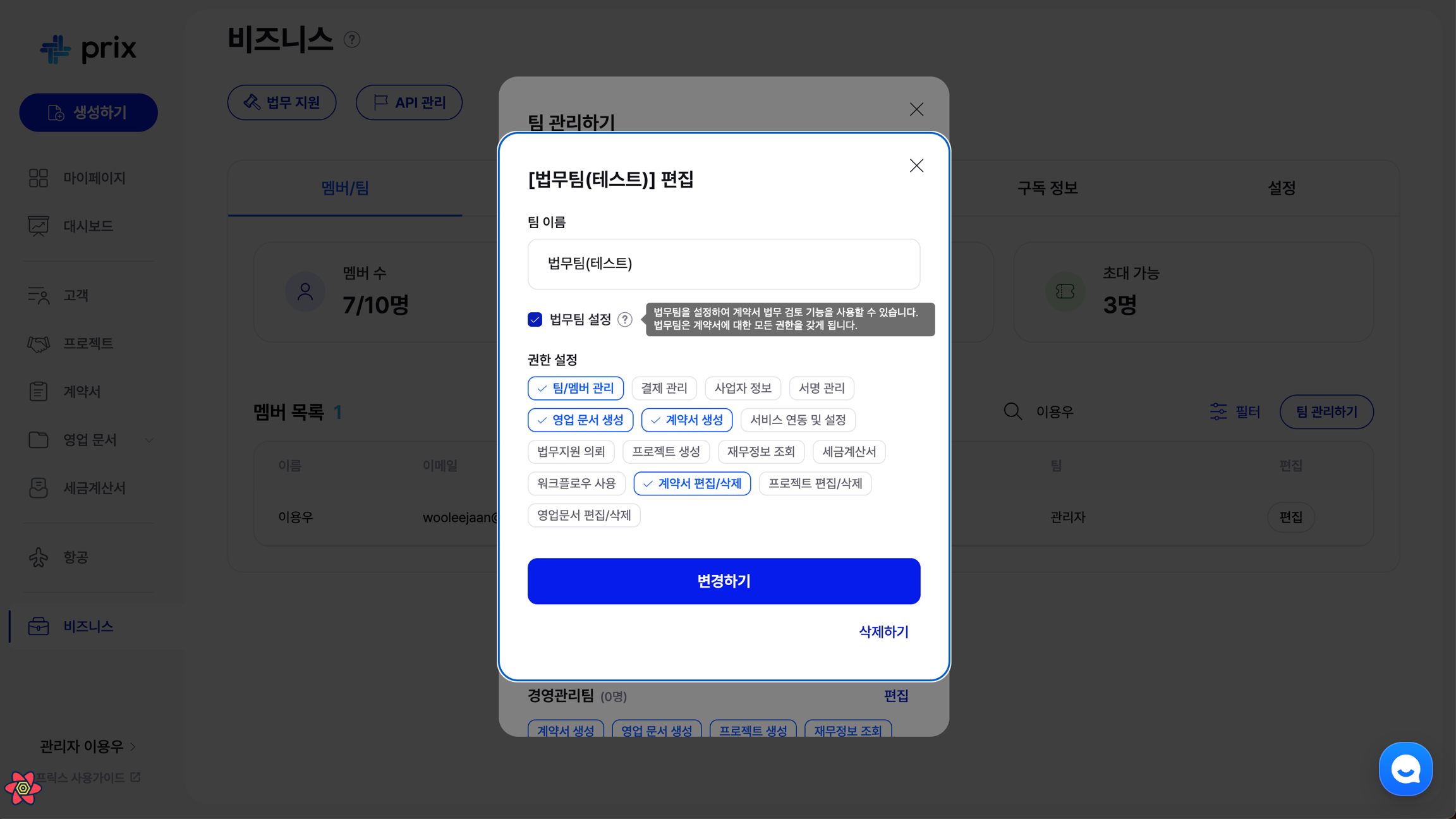
Manage your teams by navigating to the 'Members/Teams' tab in the Settings page.
Set a specific team as a legal team by clicking on the checkbox, which will automatically include permissions related to contracts (you can also grant additional permissions to thelegal team as needed).
Requesting a legal review (non-legal team members)
Access the list of contracts by clicking on 'Contracts' in the left navigation bar.
Create a contract by clicking on 'Create' on the left or by clicking the 'Create' in the top right corner of the contract list page.
Contracts can also be created via templates/workflows, etc. Refer to the guide below for the specific information.
Click the title of each contract in the list of contracts to go to the contract detail page.
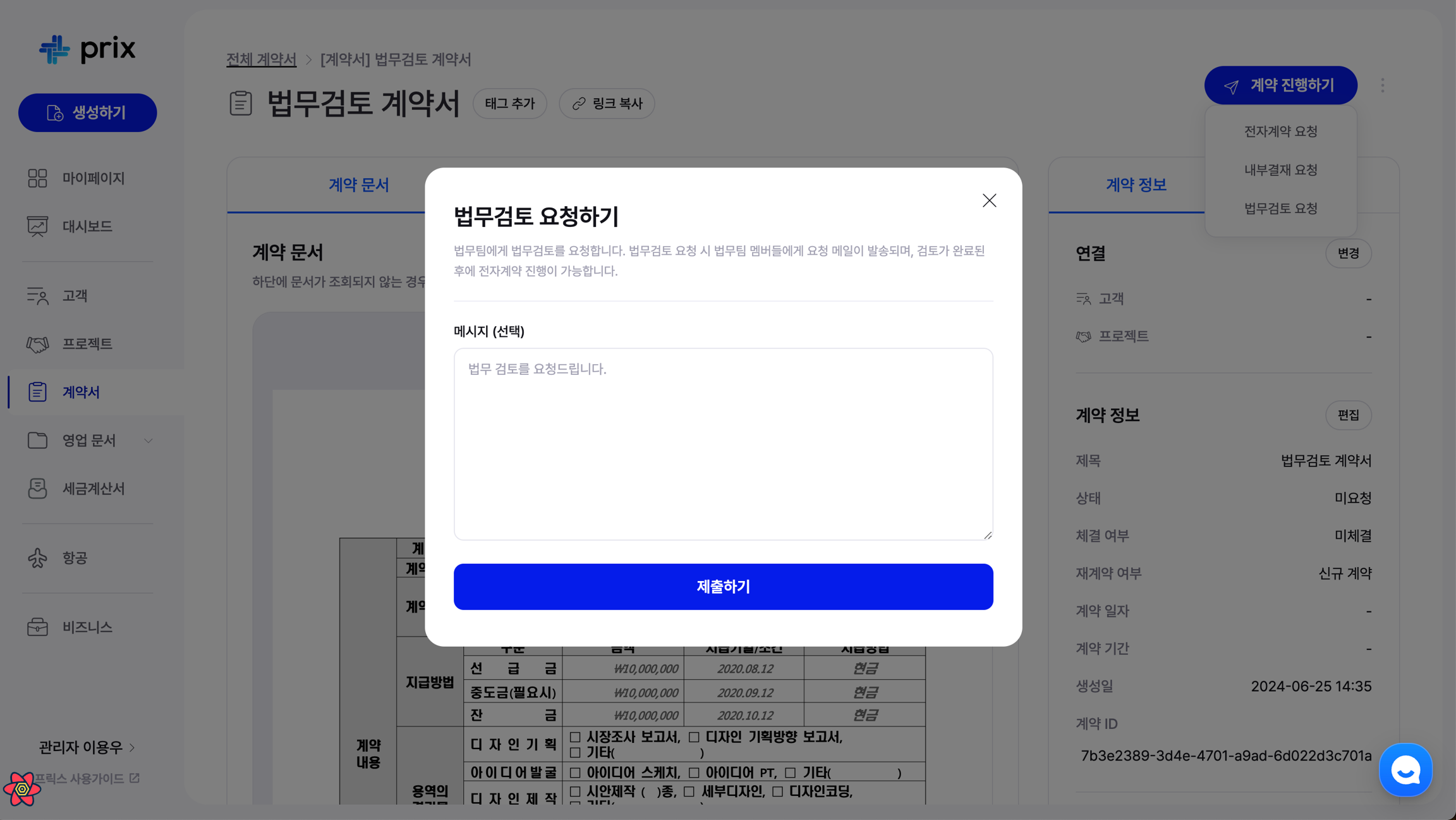
Click on 'Request eSignature' in the top right to proceed with the contract.
After creating a contract, you can request a legal review before requesting an eSignature (you can also request an eSignature without a legal review).
After clicking on 'Request legal review', you can include a message that will be sent to the legal team.
The legal team will be notified by email when legal review request has been submitted
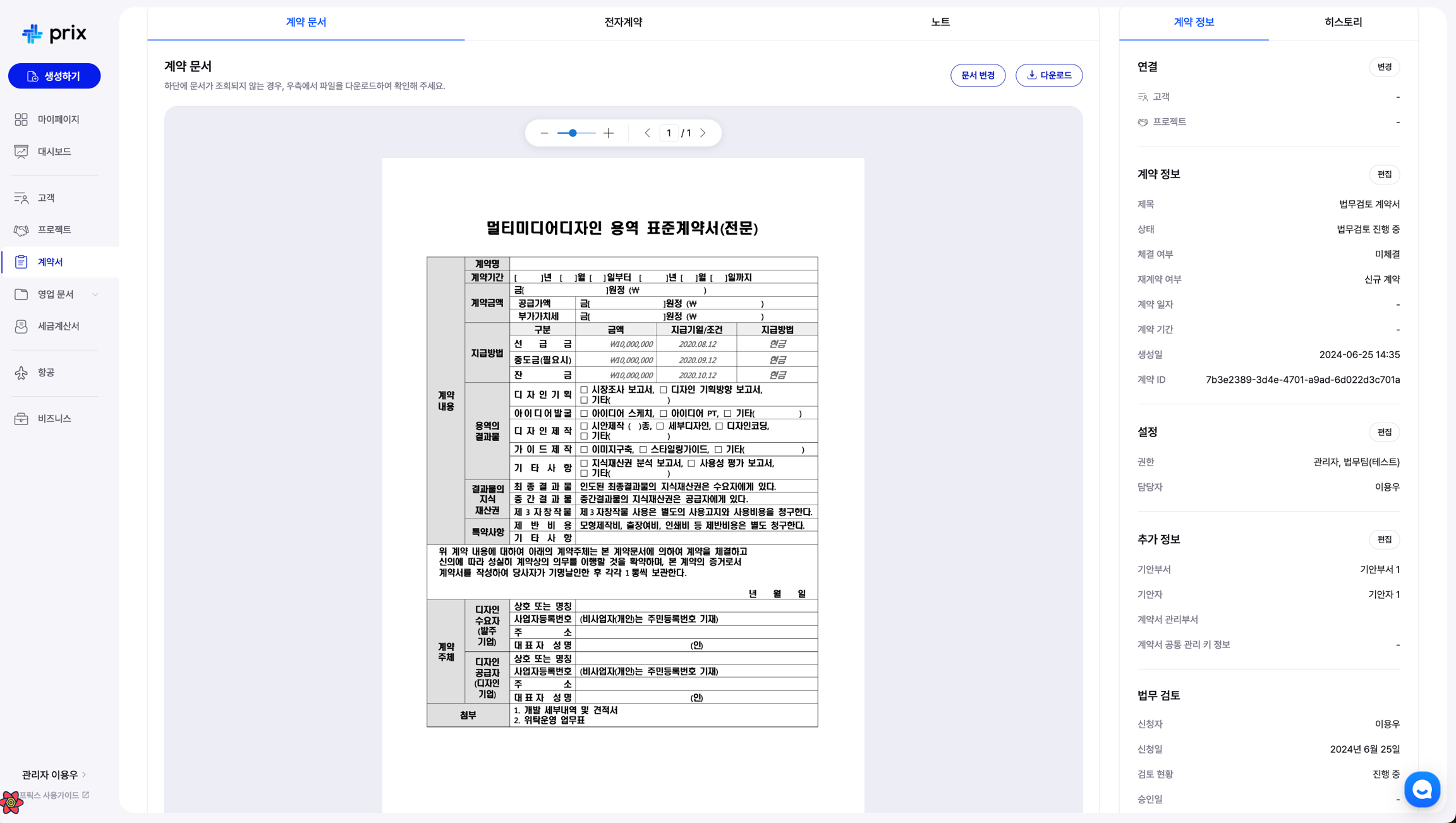
Once you've requested a legal review, you can check the status of the review in the 'Legal review' section under the contract information panel on the right.
The status will update to 'In progress' upon request.
Note: in order for the legal team to perform a legal review on a contract, the legal team must have access to view the contract
Proceed with legal review (legal team member)
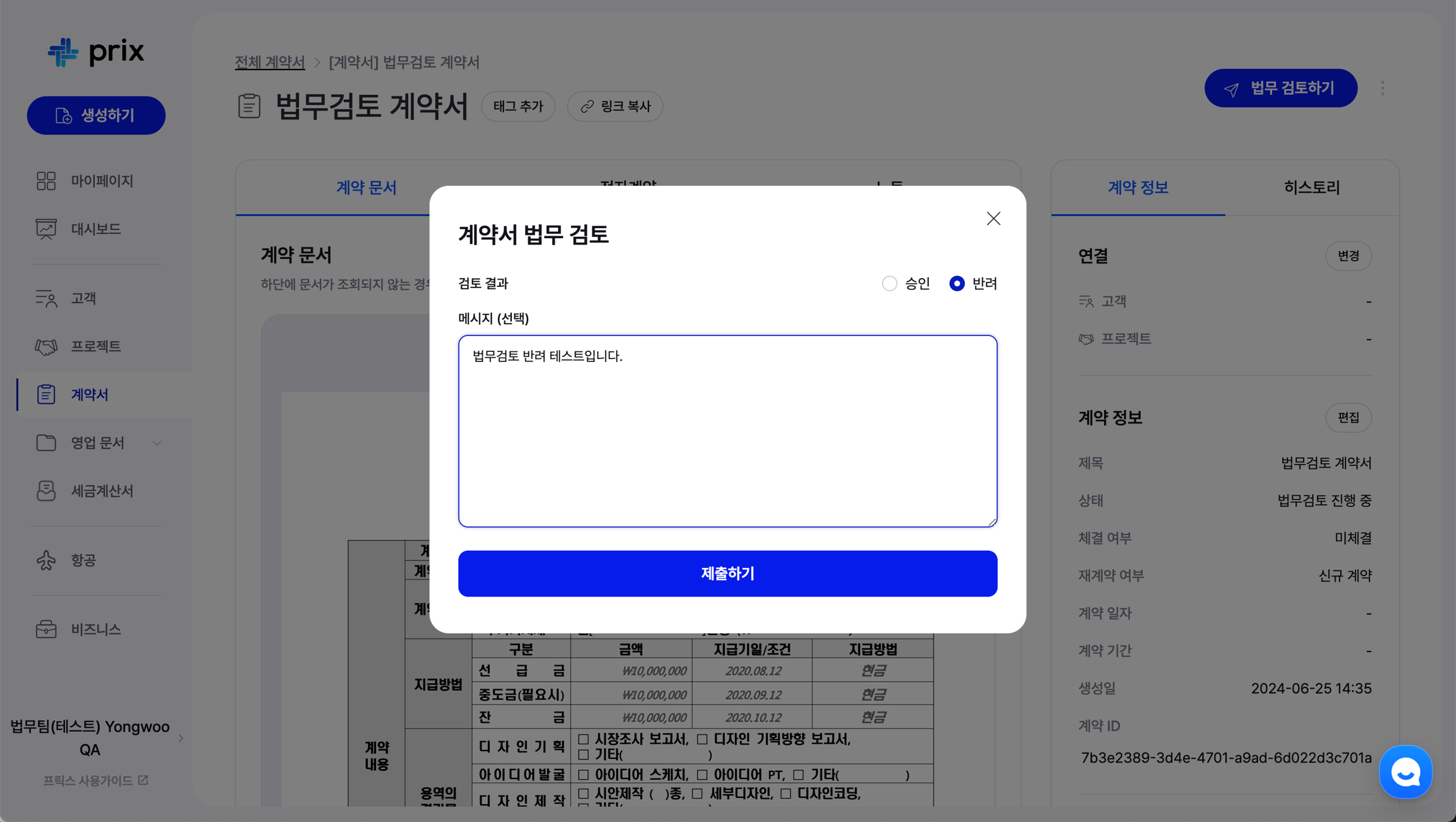
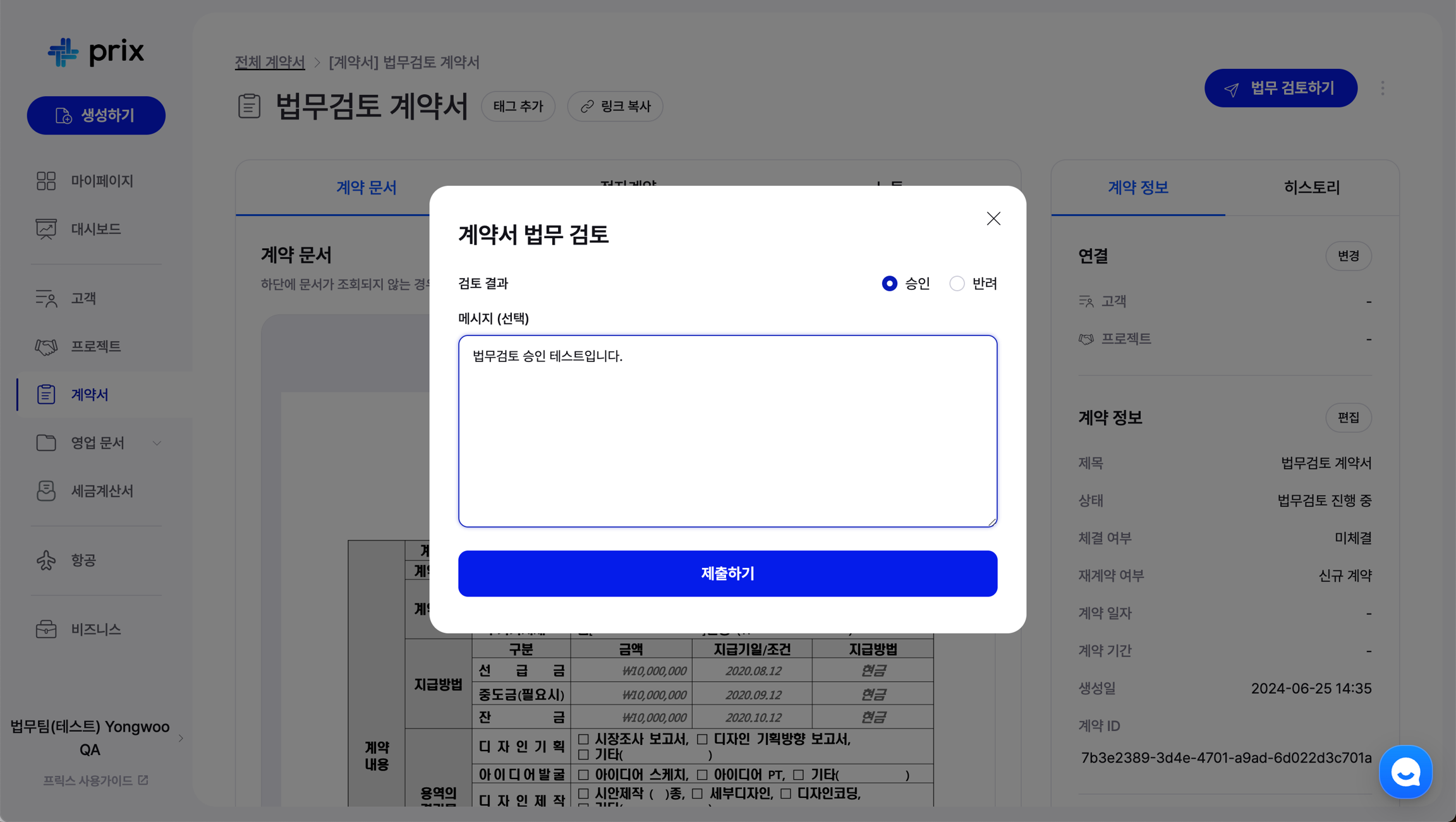
The legal team can proceed to review contracts that other teams submitted for legal review (click on 'Proceed with legal review' in the top right corner of the contract detail page).
'Approve' or 'Decline' and include a message/reason for decision
The contract's account manager will receive the outcome of the legal review by email
Resubmit legal review request (non-legal team members)
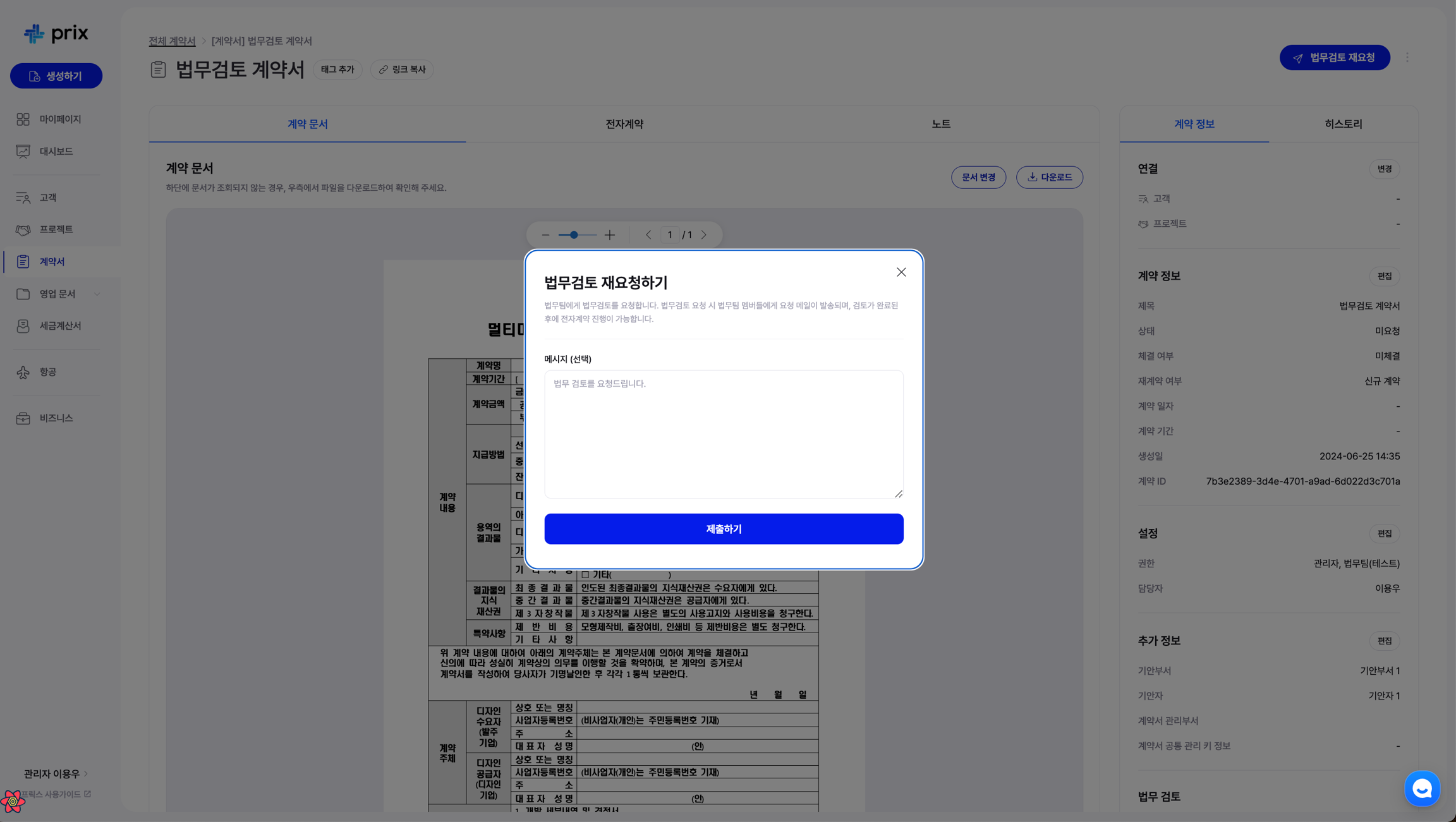
If the legal review was 'Declined', you can request a legal review again by clicking on 'Resubmit legal review request' button in the top right corner of the contract details page
If you need to change the contract file, you can change the registered contract file by clicking on 'Change document' in the 'Contracts' tab
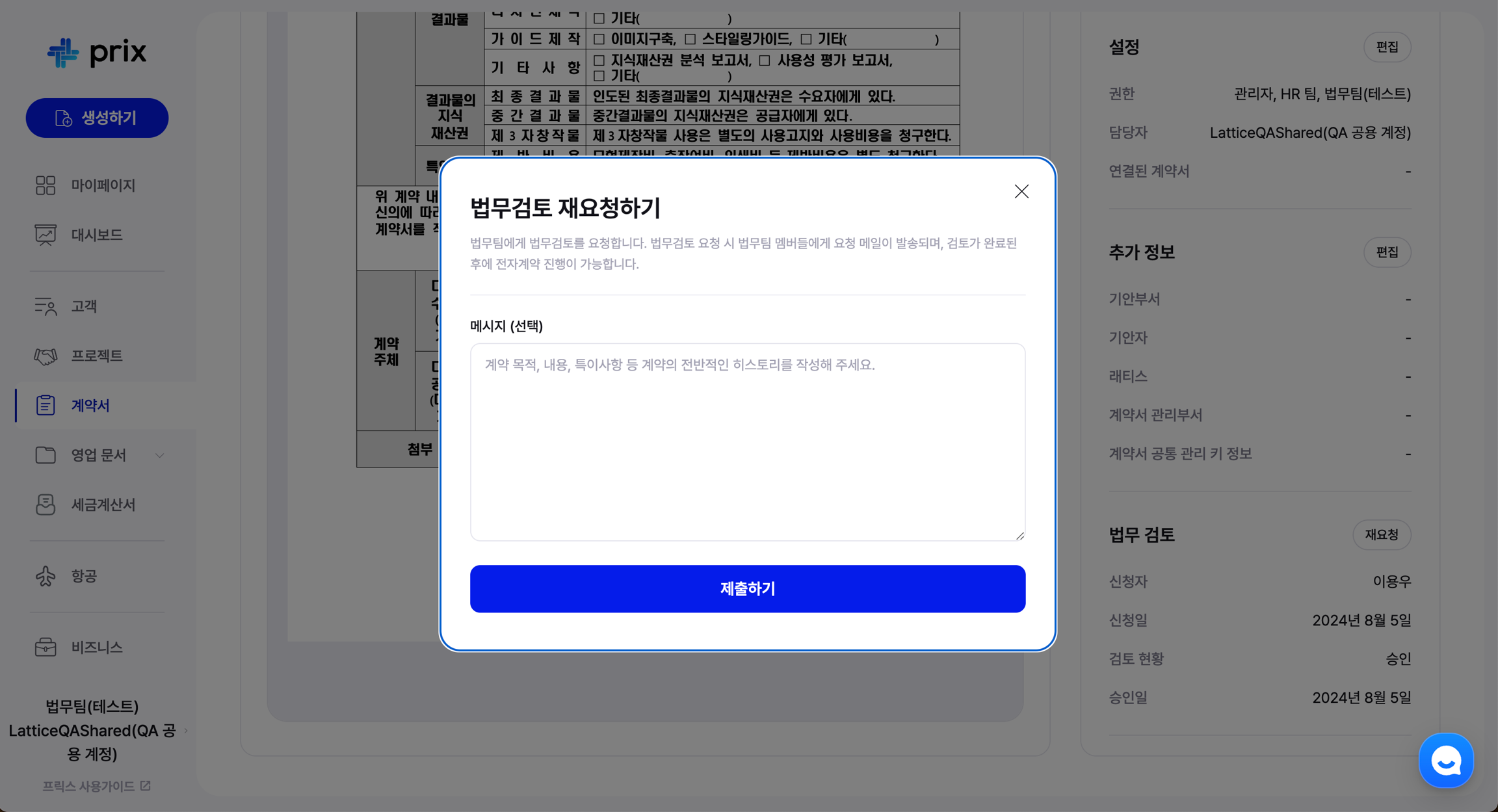
You can also request a legal review again even if the legal review was 'Approved'. There is a 'Resubmit legal review request' option in the 'Legal review' part of the information section on the right-hand side of the contract detail page
View legal review approval and history
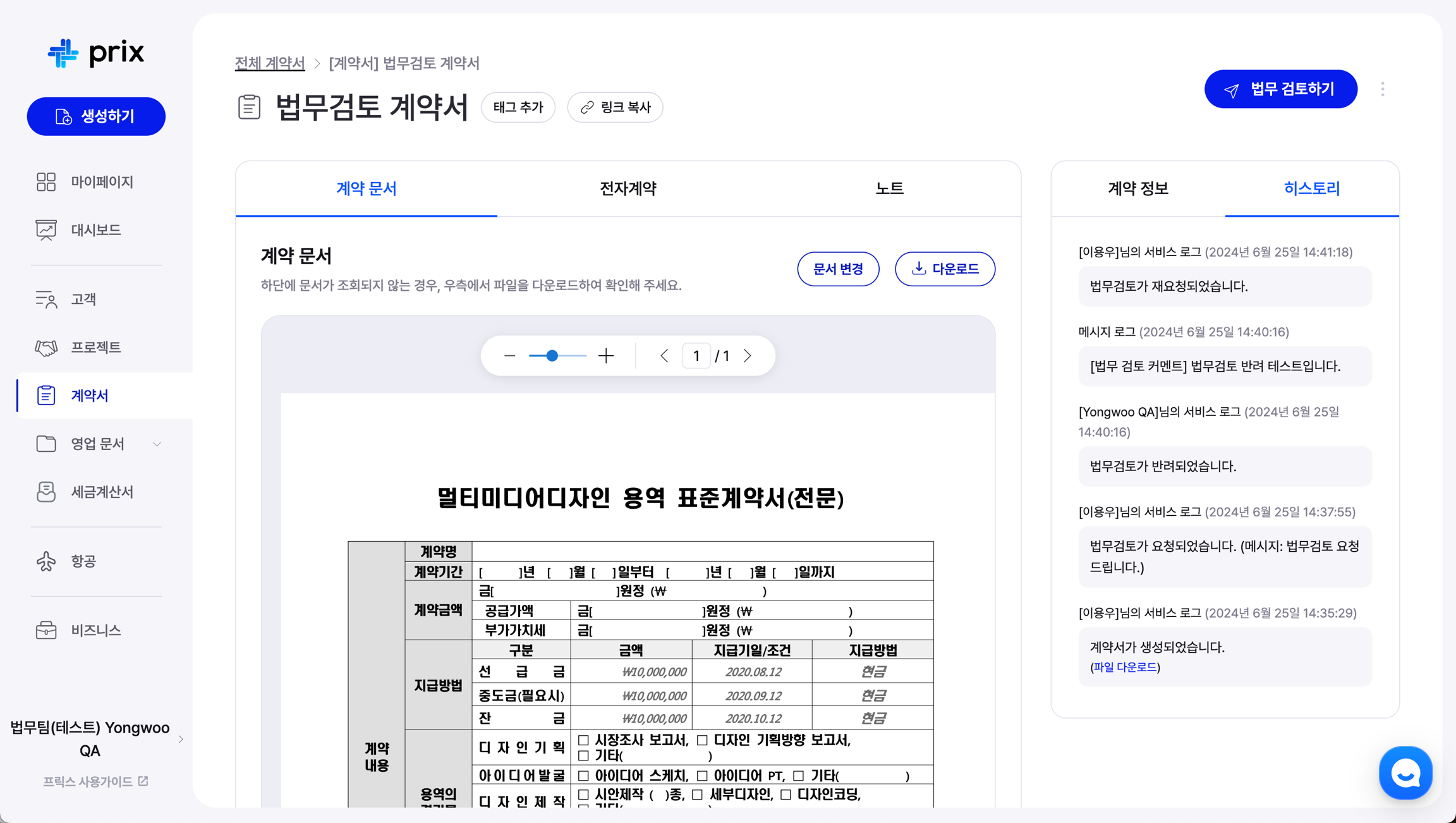
If the legal review is approved, you can proceed with the eSignature.
If the legal review is denied, you can resubmit a legal review request. However, you cannot proceed with the eSignature if the legal review is still 'In progress'
View the contract's history on the 'History' tab on the right side of the contract detail page.
View the full history of the contract from its creation, through the legal review process, to the final eSignature step
Share the contract progress page externally
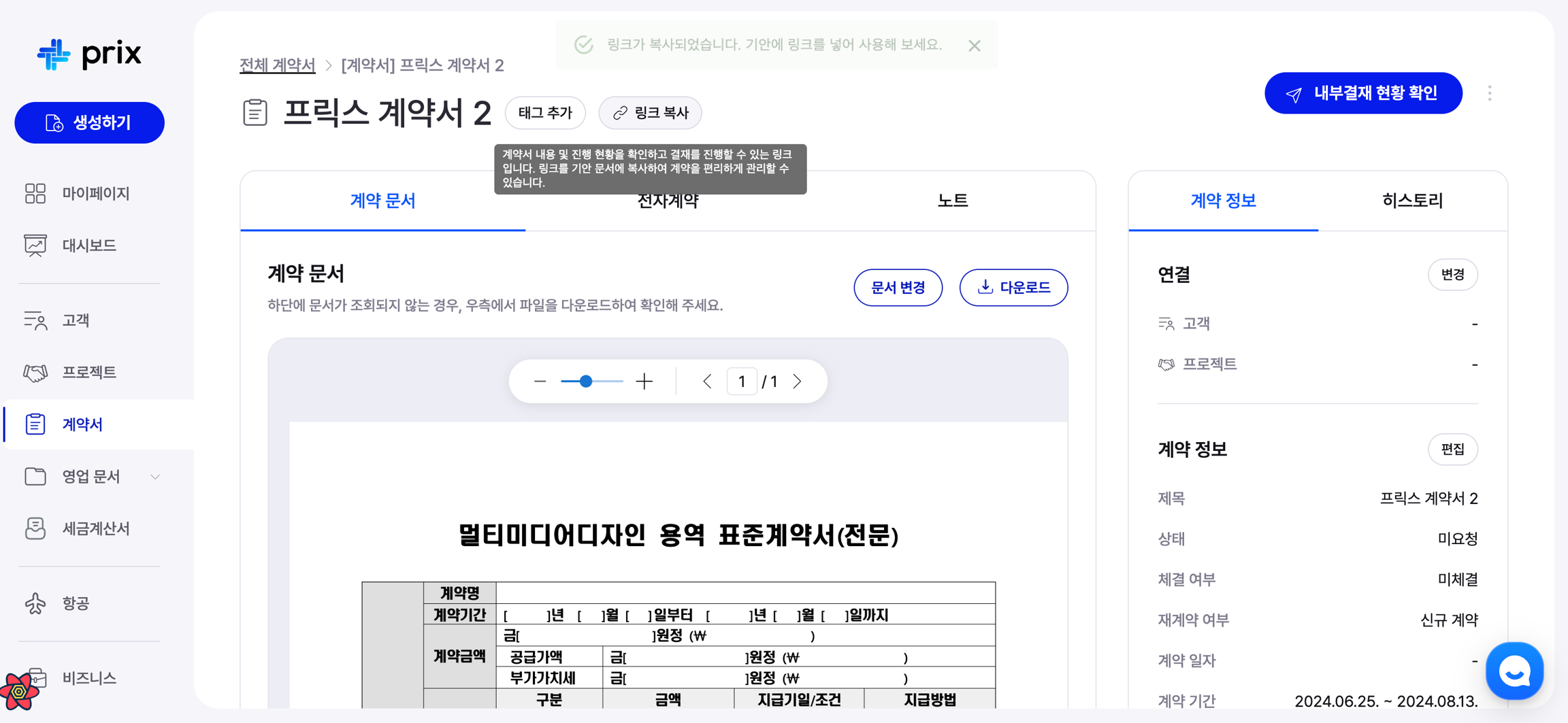
Copy and share a link to the contract progress page.
On the contract progress page, you can view the status of the legal review.
Last updated